Clear-Com HME DX410 Dual-Channel Wireless Intercom
DX410 Digital Wireless System
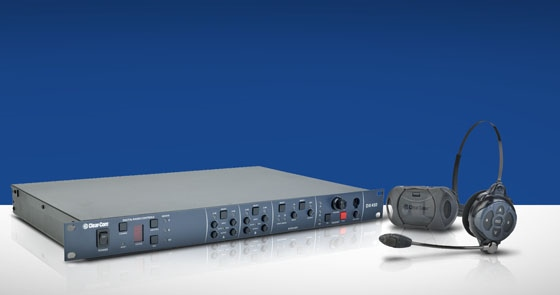
"Two-channel intercom system that operates in the 2.4 GHz wireless band with 2-wire and 4-wire bridging, and 2-wire auto-nulling."
Information taken from the DX410 User Guide
What's in the Box(es)?
BS410 Base Station Case:
- BS410 Base Station
- Antennas
- 110/240 Switching Power Supply
BS410 Beltpack Kit
- 5 Headsets
- 4 BP410 Belt Packs
- 4 AC50 Batteries
- AC50 Battery Charger and Power Supply Adapter
Getting Started
Base Station Setup
simultaneously. In Dual Channel mode, there are two separate audio channels enabling two groups of users to
independently communicate with each other. Up to three users can talk simultaneously. NOTE: Any time the mode is changed, the unit must be reset using the RESET button or by power
cycling for the change to take effect.
Belt Pack Setup and Registration
Setup
Plug the belt pack’s headset cable connector into each Belt Pack.
To release the battery from the Belt Pack, press the button on the back side underneath the clip.
With our color-coded kits, the Belt Packs that come in the kit should already be registered to their respective base station. If problems should arise, this is the registration process.
The Belt Pack must be within 6 feet of the base station to enable registration.
1. Be certain all headsets to be registered are turned OFF, and the base station power is ON.
2. Place the headset on your head.
3. Press the REG button on the front panel of the base station. The STATUS display will show a
small “o” for open.
NOTE: If you wait too long before going on to the next step, the base station will exit
registration mode, requiring that you press the REG button again.
4. Press and hold the ISO button on the Belt Pack while you press and release the
Power button (PWR). After power up, release the ISO button. The Belt Pack will
enter Registration mode.
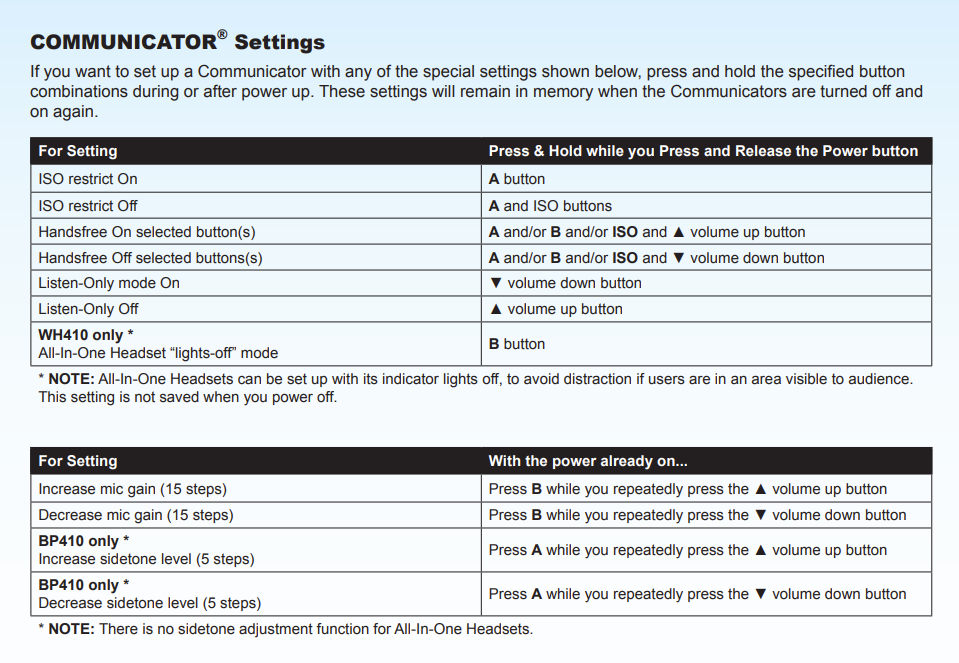
On Belt Packs, the two power lights at the corners near the A and B buttons will
begin blinking red, and then they will blink green two or three times then turn off.
Note: There may be a short delay.
If registration is successful, a voice prompt in the headset will say “Battery level, begin registration…”.
After a delay of about 15 seconds, the status display on the base station will show the ID number assigned to the
Belt Pack for about 10 seconds.
If registration fails:
on the Belt Pack will be blinking red, and there may be a delay of up to 90 seconds
before you hear “Registration failed.” Press the RESET button at the lower-left corner of the base station with a pen or similar
pointed object. When the STATUS display becomes blank, press the REG button
and register the Belt Pack again. If registration fails again, call your dealer for
assistance.
Interfacing with Other Systems
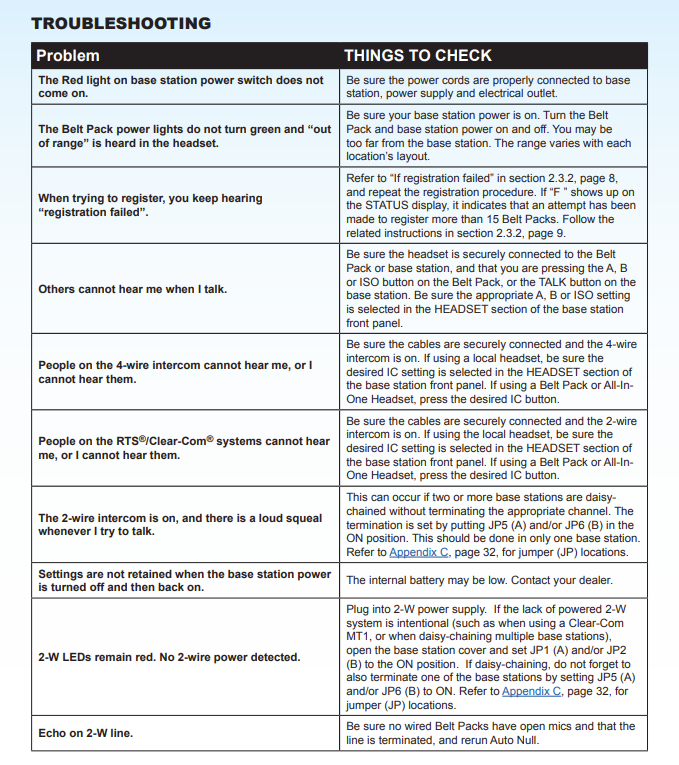
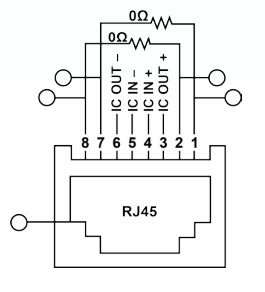
The DX10 System has the capability to interface with 2-Wire and 4-Wire systems individually, or at the same time. You can cycle through each option with the SELECT button for each channel.
2-Wire Connections
CLEAR-COM / RTS button on the back of the base station as follows: In position = RTS Mode Out position = Clear-Com Mode Press the SELECT button on the front panel of the base station for the channel that you are connecting. The 2-W light next to the button should turn green.
passed through. Plugging a connection into a Clear-Com or RTS power supply will turn the light green and
operation will begin. Make certain there are no open microphones on the wired intercom. If users are wearing headsets, please
notify them of the impending audio sweep prior to auto nulling. Press and hold the AUTO NULL button on your channel for two seconds. To press the AUTO NULL button, insert a pen or
similar pointed object into the AUTO NULL hole on the front panel of the base station. An audio sweep will be
heard for 25 seconds on the wired Belt Packs. (The 2-W light next to the button should turn amber, then green.) Adjust the 2-W intercom receive and send levels with the 2-W INPUT control and OUTPUT control for your channel.
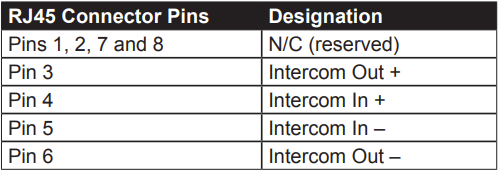
4-Wire Connections
Interfacing with Auxiliary Equipment
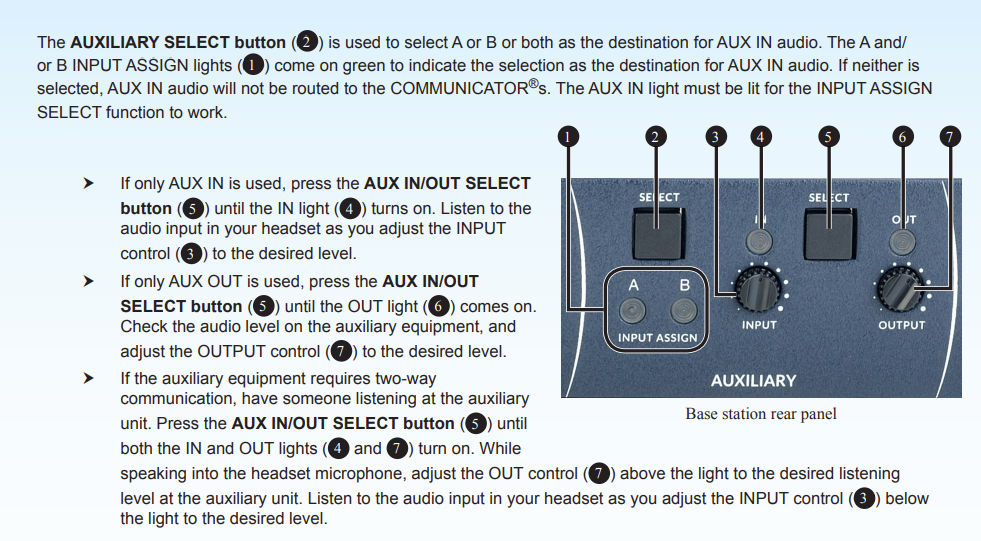
You can connect other audio equipment to the DX10 system using the Auxiliary In and Out ports on the back of the base station.
Base Station Operation
Local Headset Communication
Belt Pack Operation