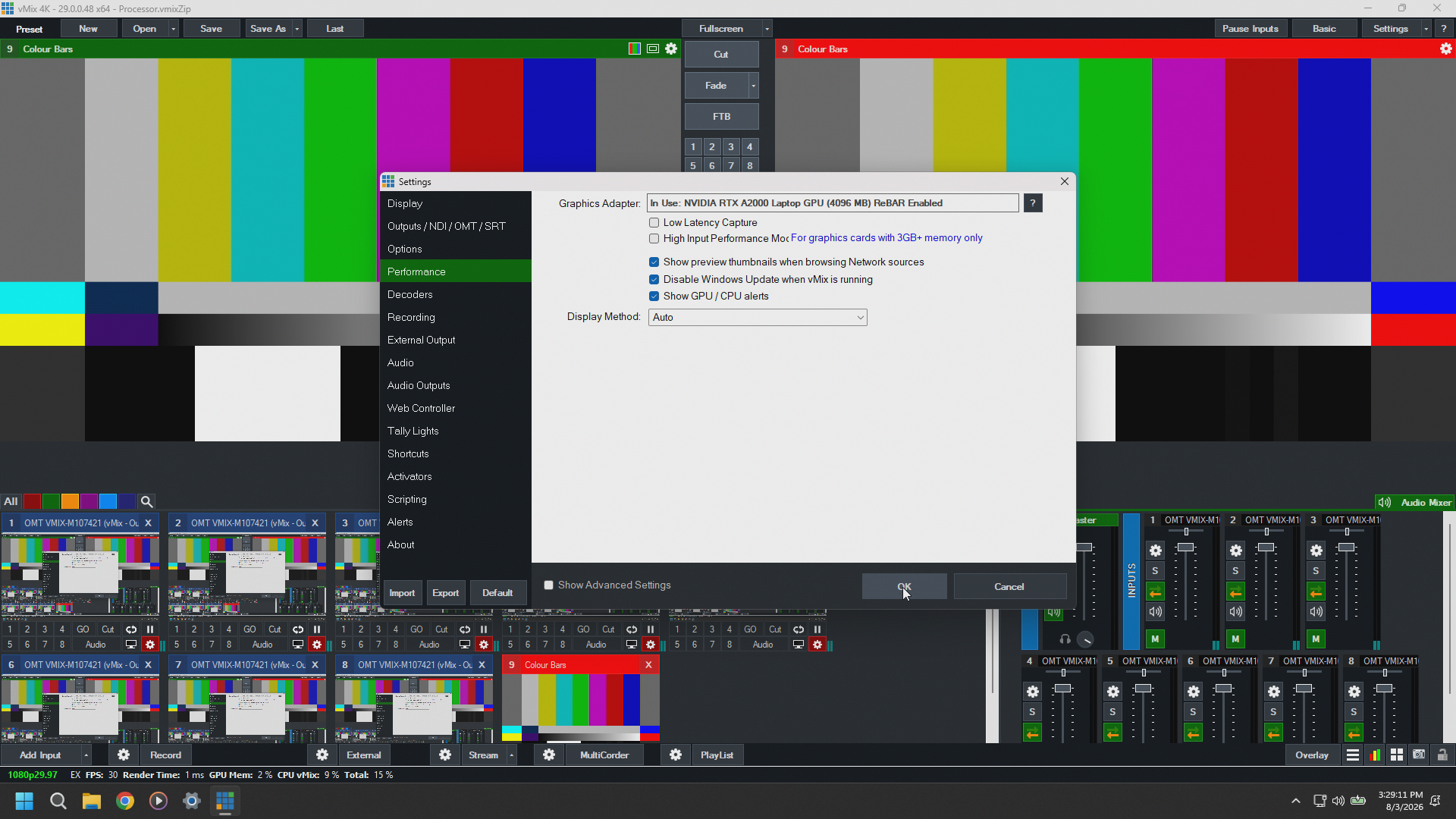
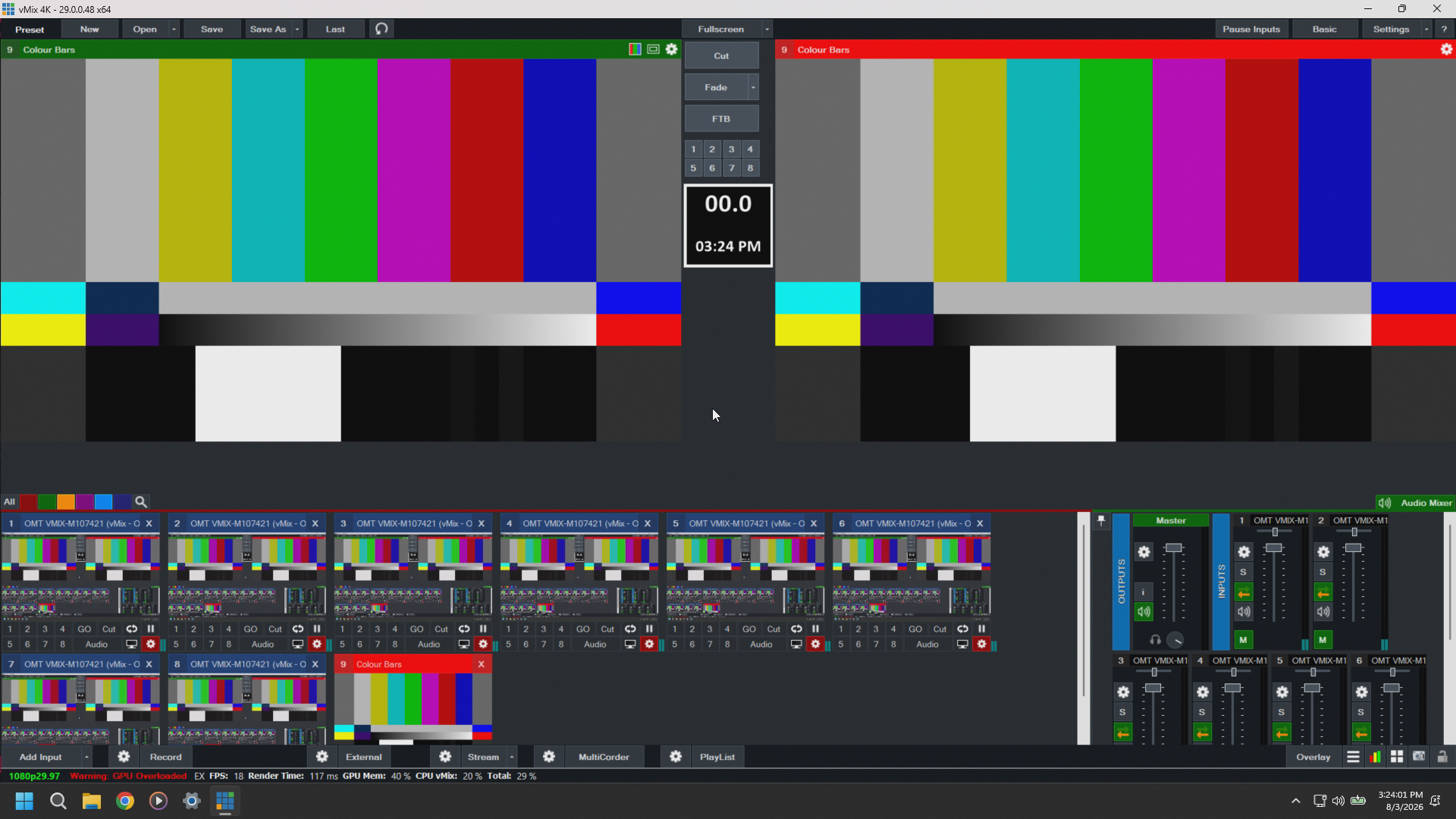
vMix shows Warning GPU Overloaded
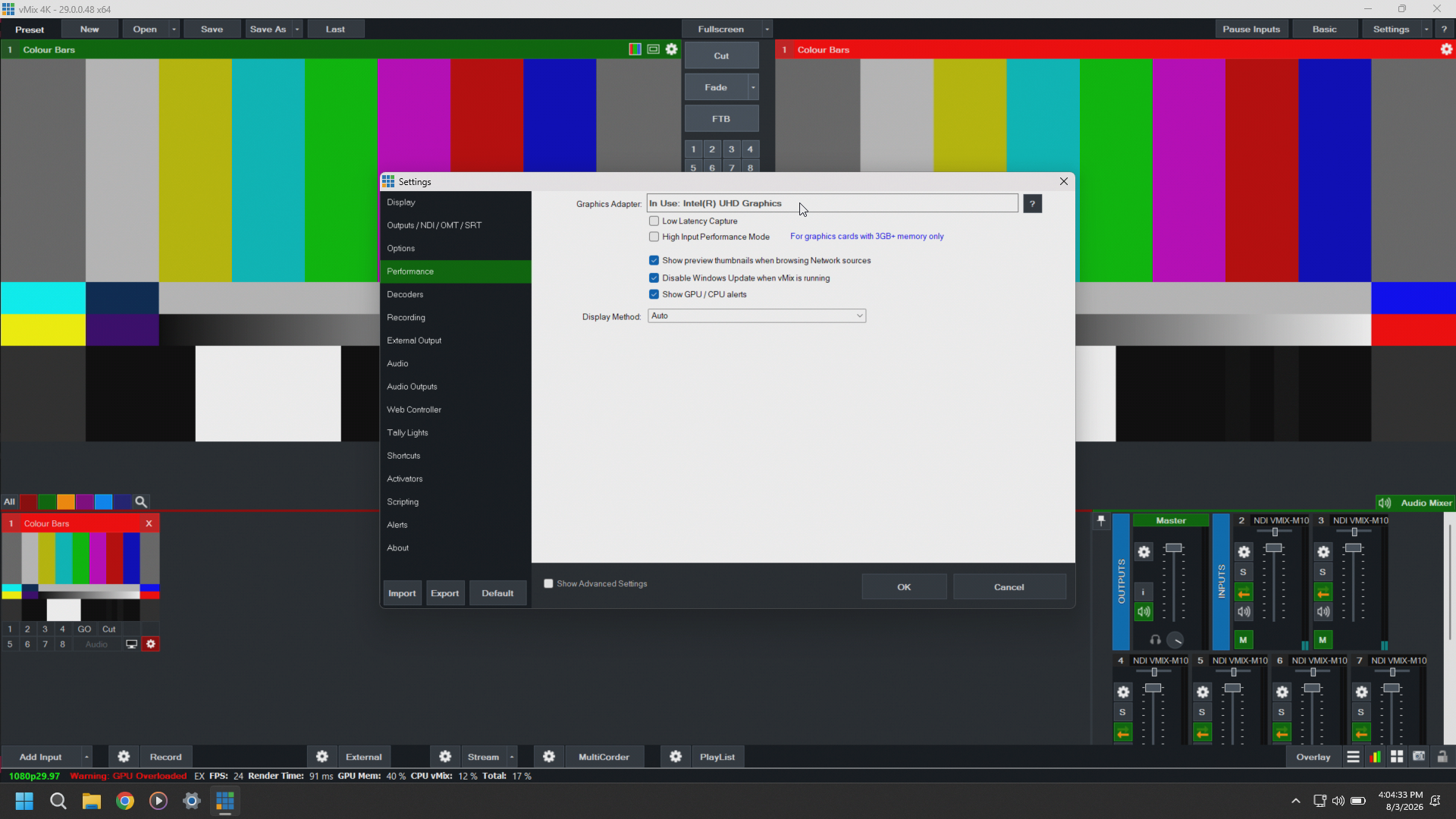
vMix Shows Warning GPU Overloaded
If You Open vMix Performance Settings It Will Show Intel UHD Graphics as the Graphics Adapter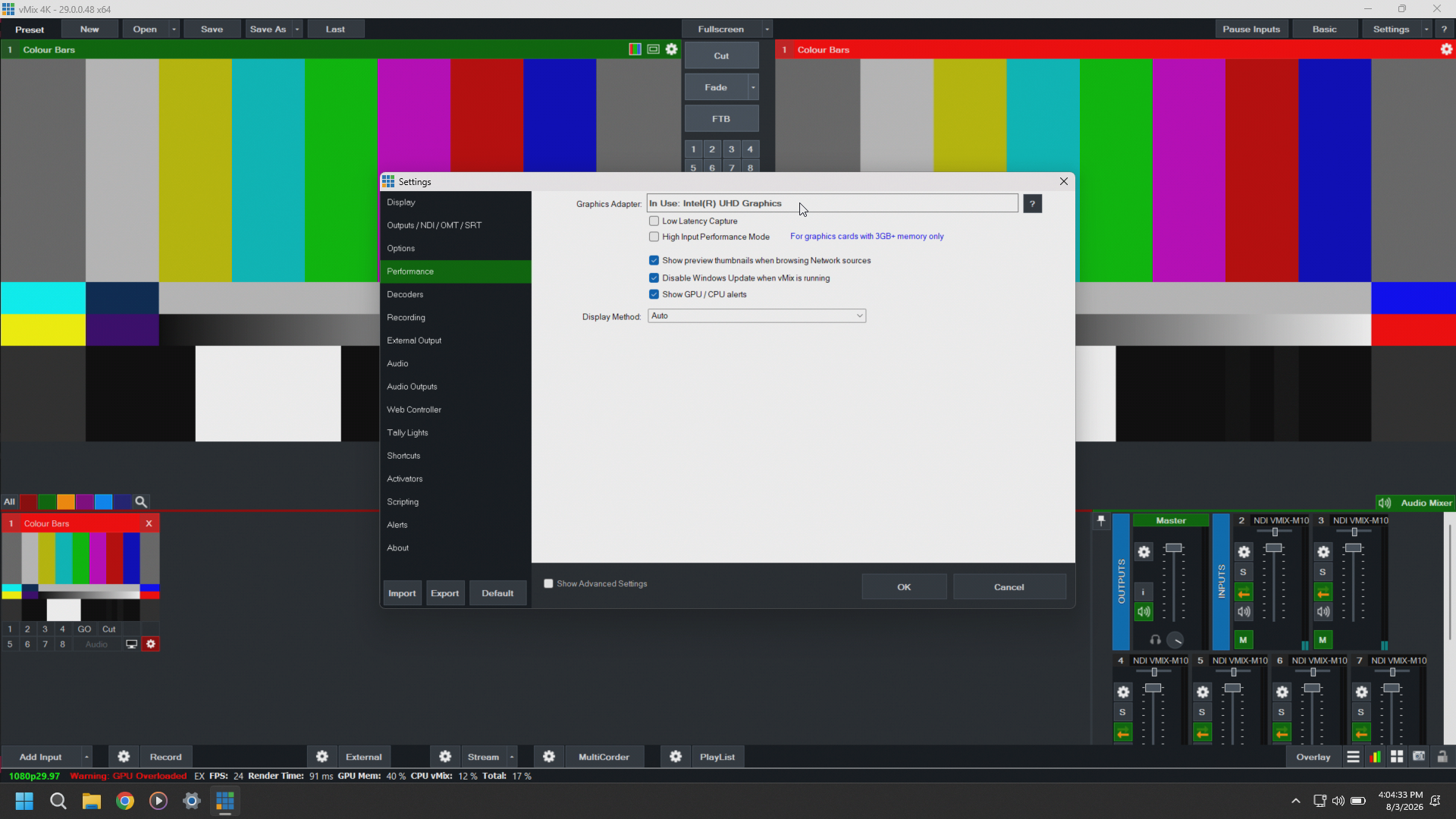
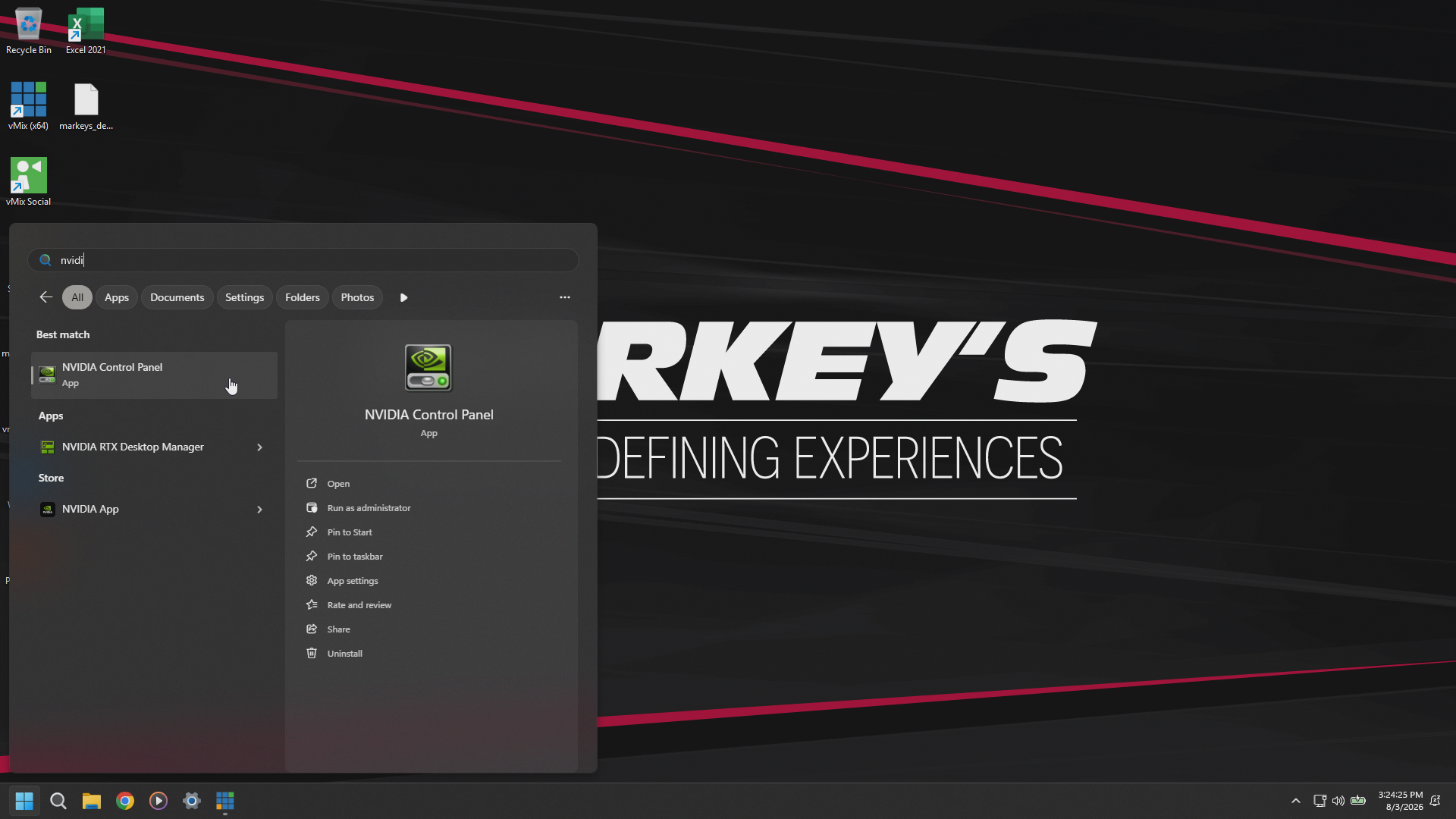
Close vMix and Open NVIDIA Control Panel
Select Manage 3D Settings in the List to the Left and Then Select Program Settings in the Pane on the Right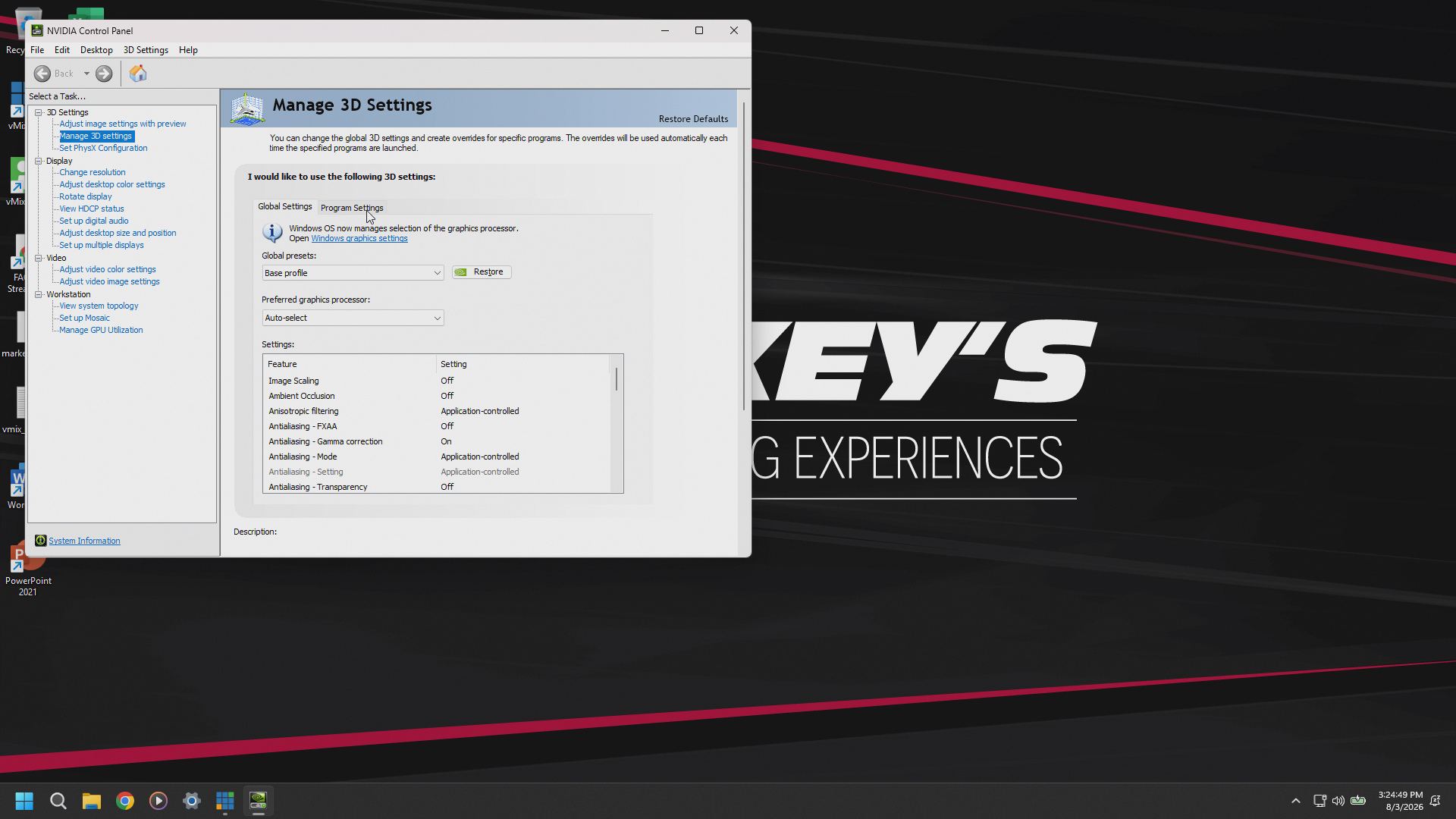
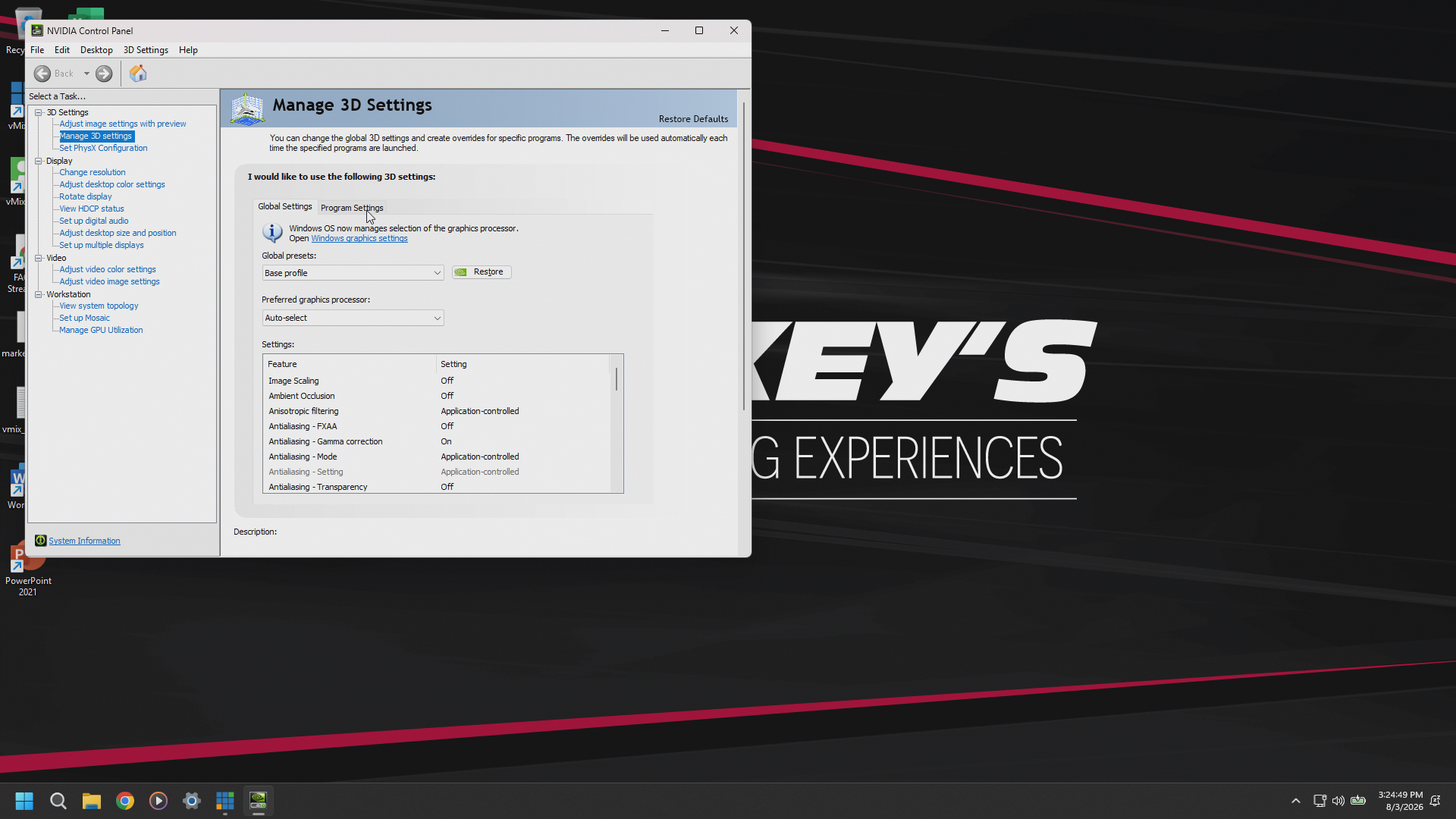
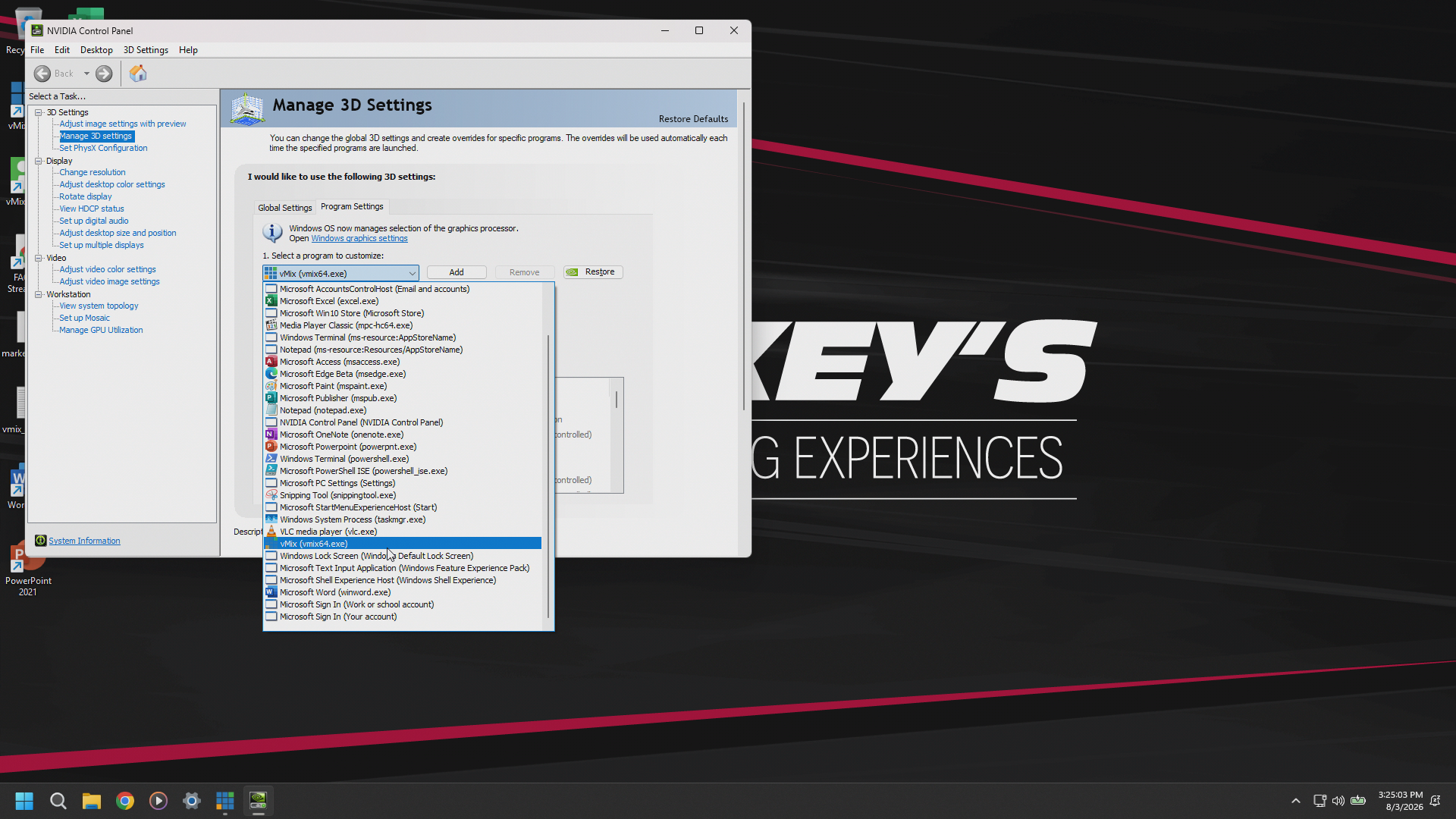
Select vMix from the Dropdown 1 at the Top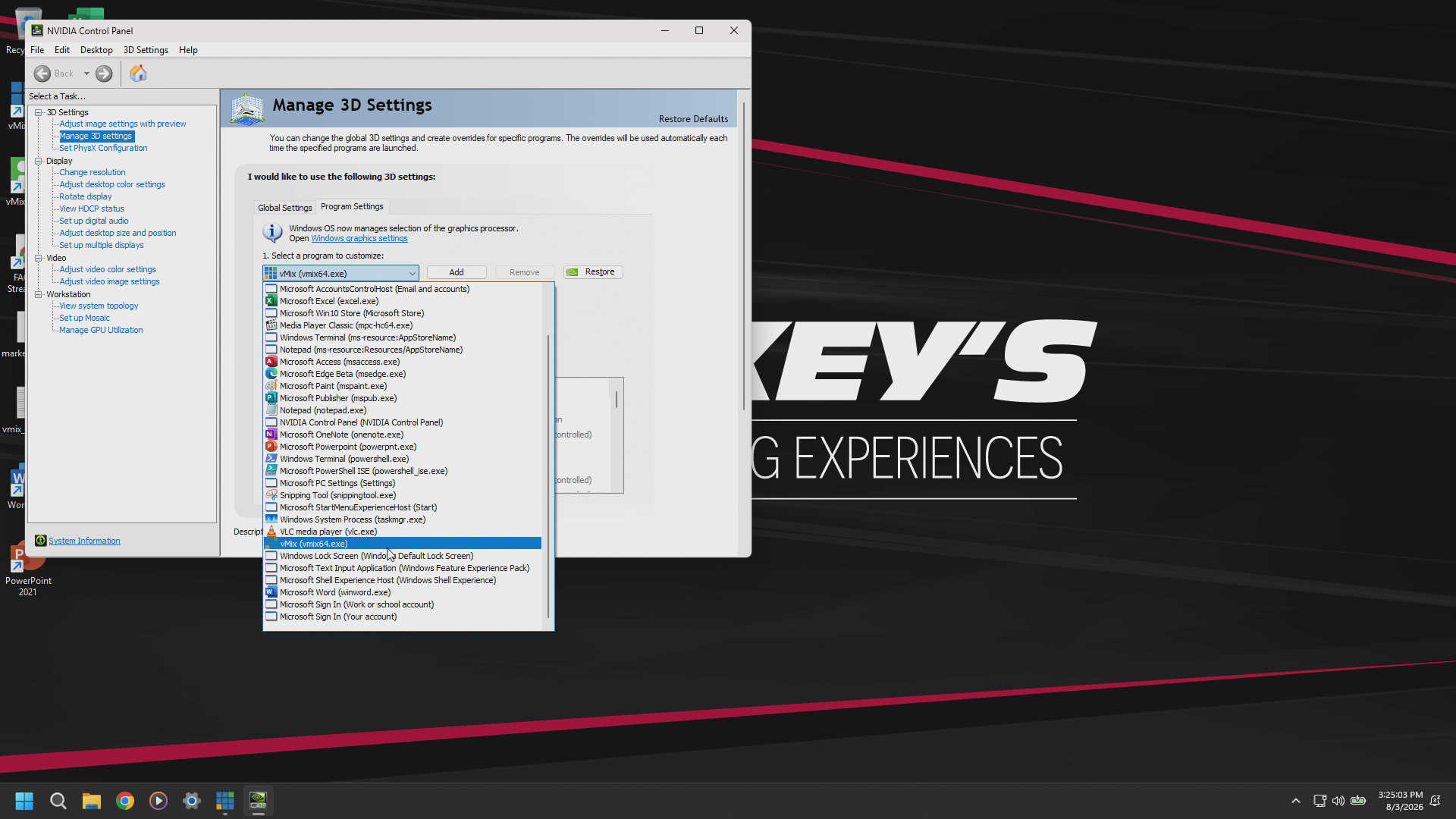
Select High performance NVIDIA Processor from Dropdown 2 Underneath.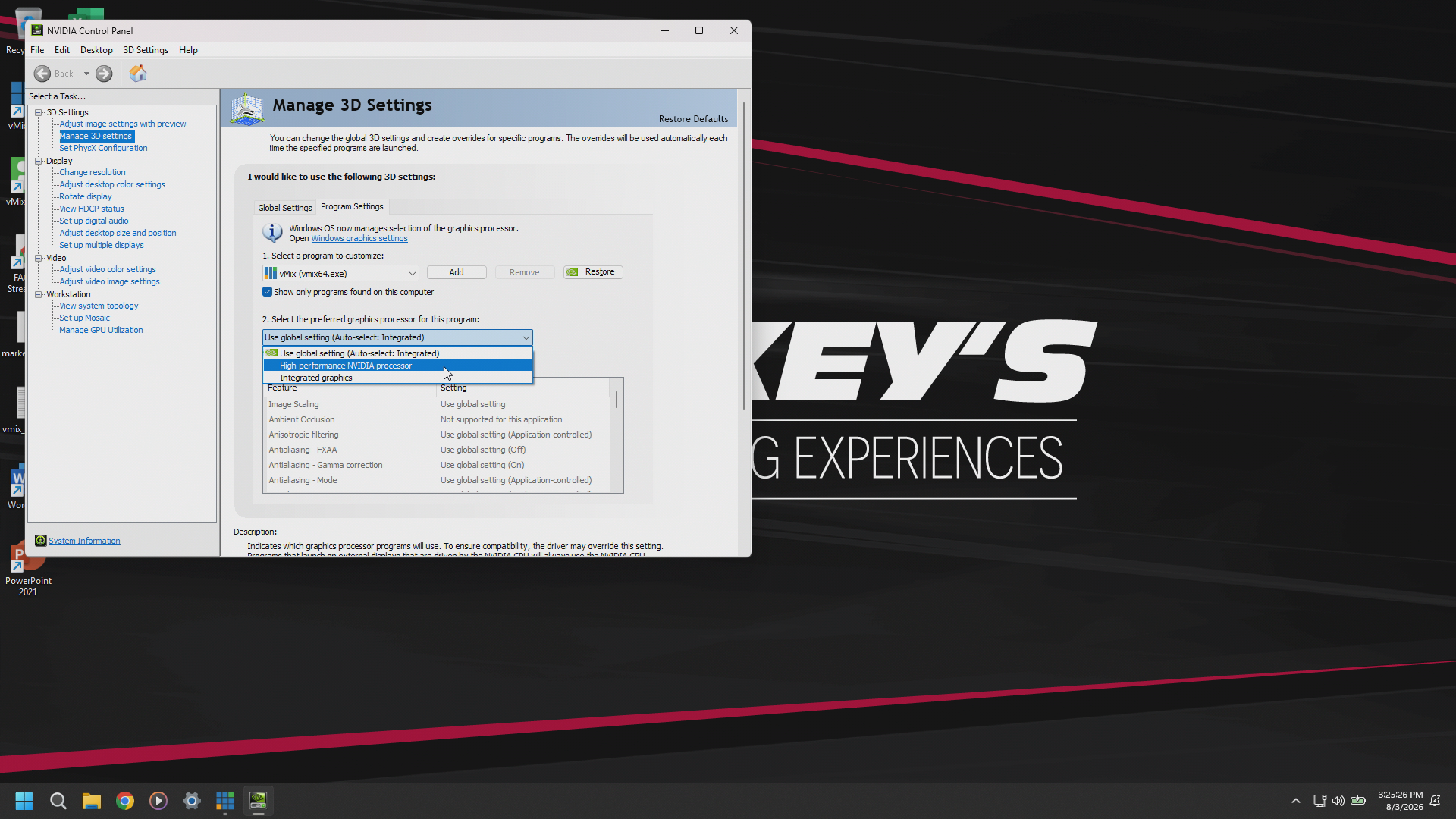
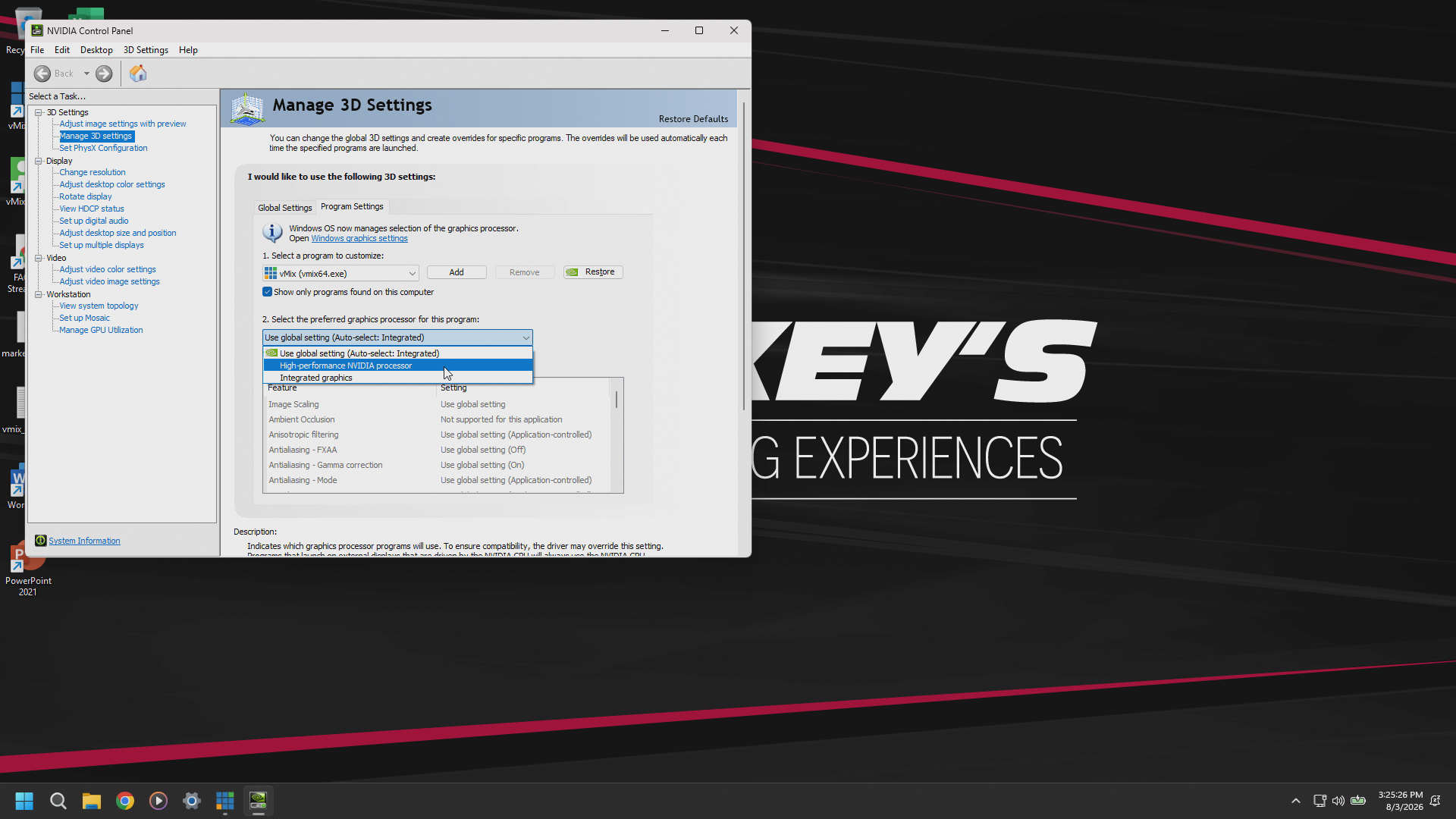
Hit Apply & Reopen vMix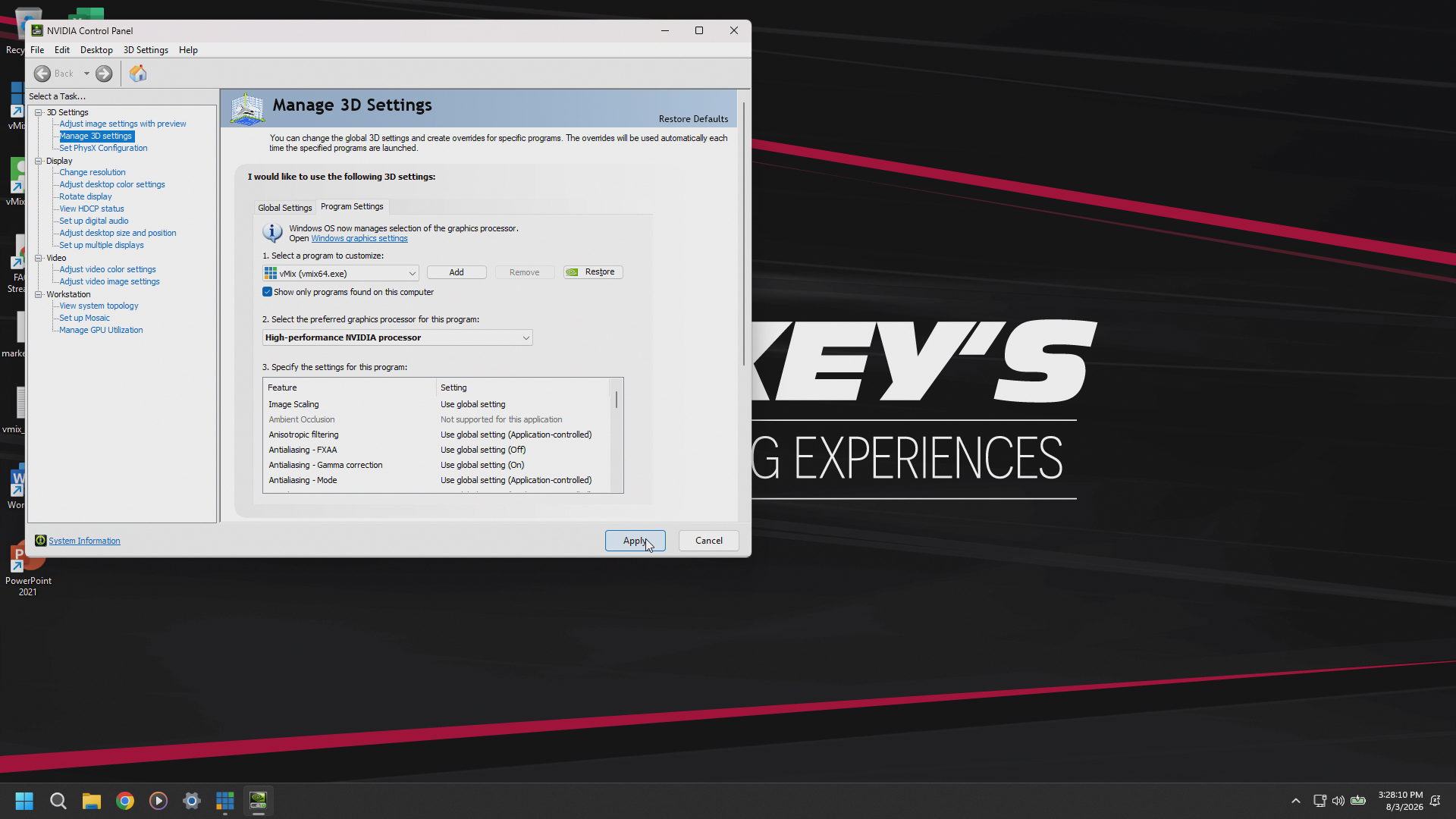
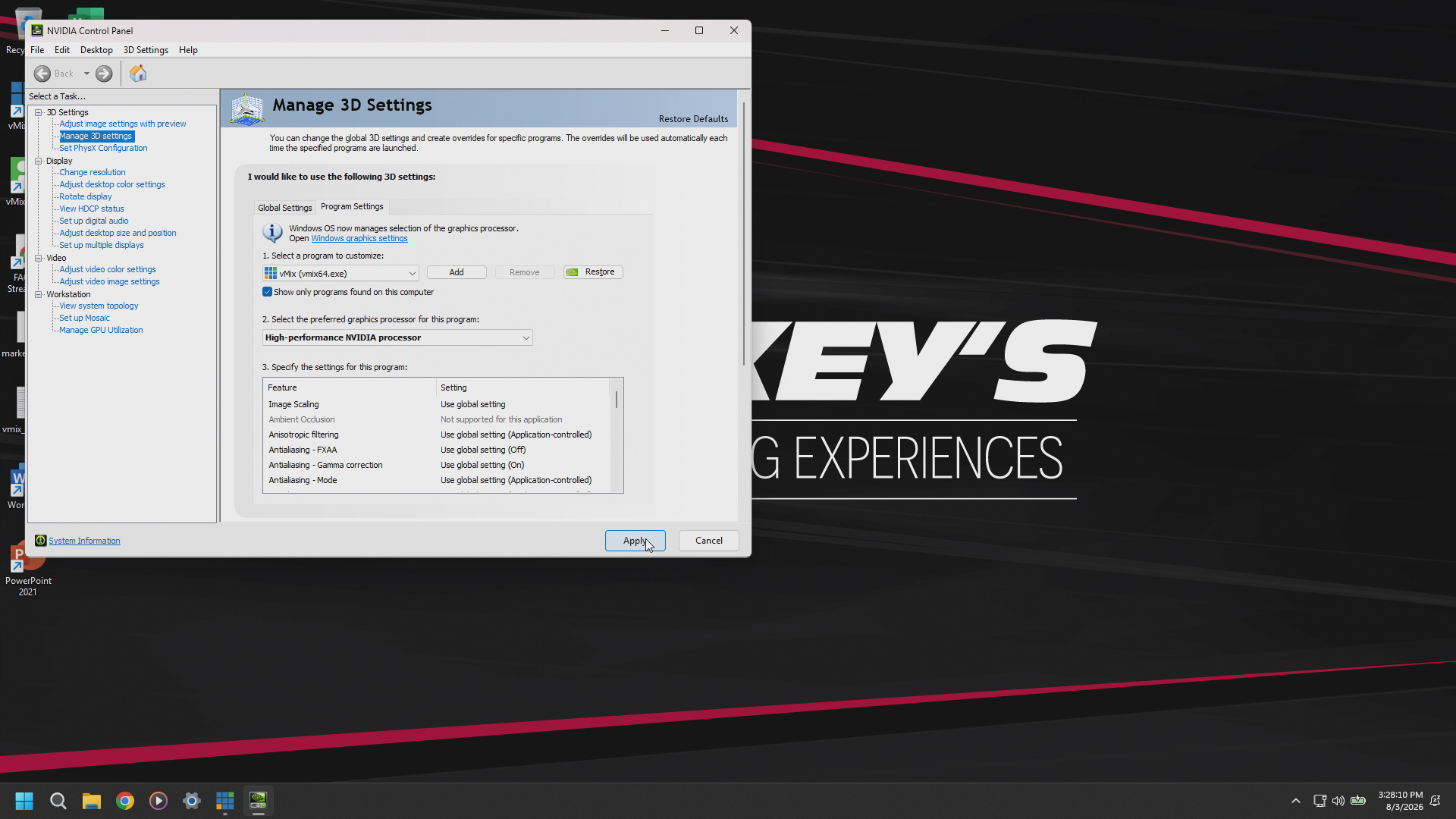
It Will Now Indicate the Correct Graphics Adapter in the Performance Settings and the Error Message Should Be Gone.