
Quickstart
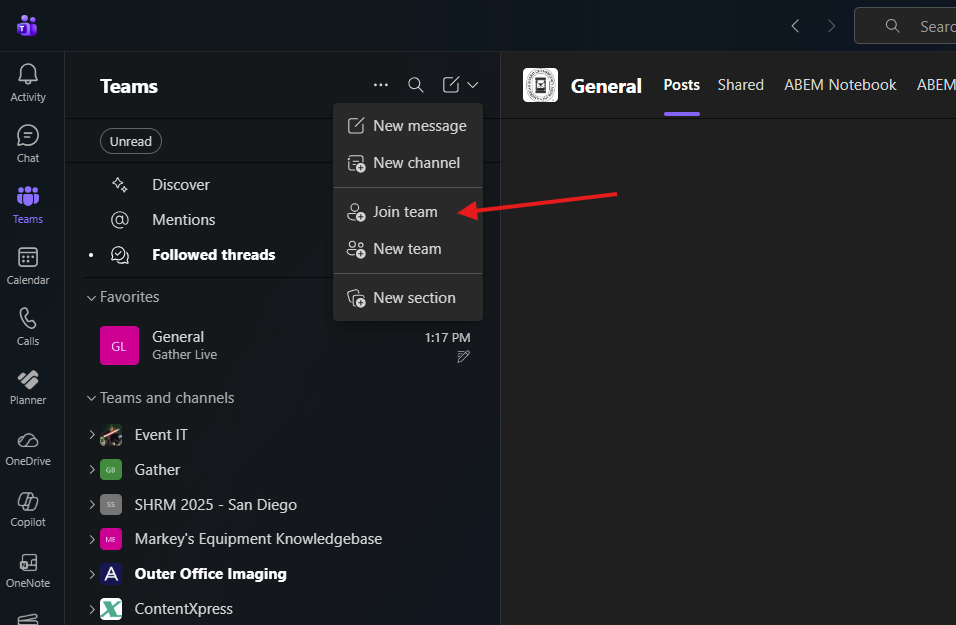
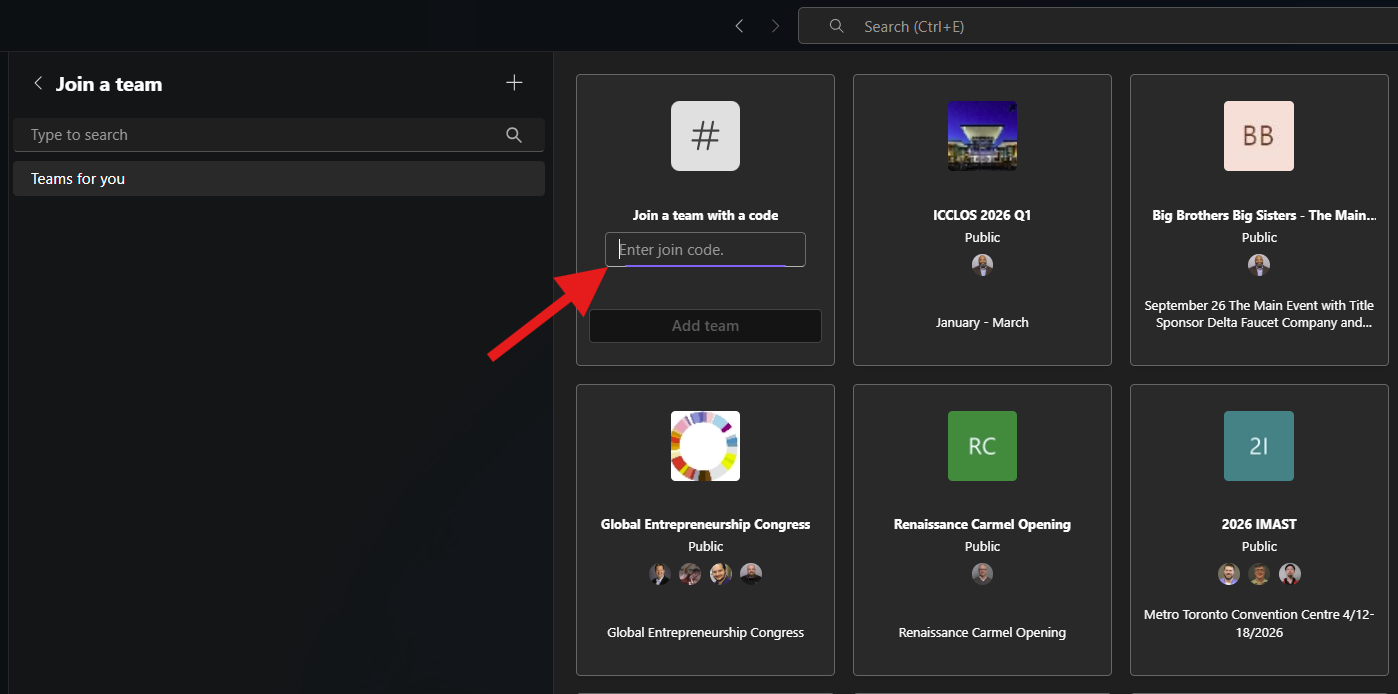
Start by adding the Team using the join code on the information card in the case.
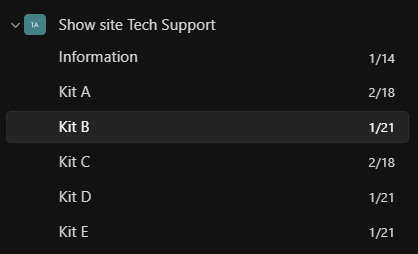
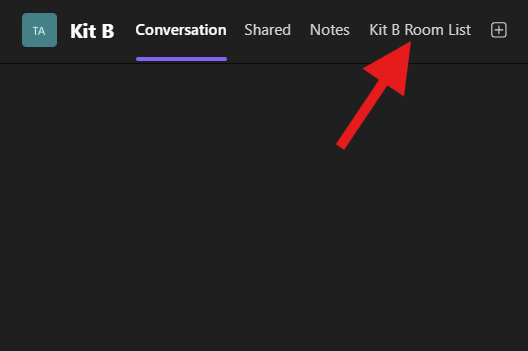
Choose the channel for your kit and choose the Room List tab at the top. If you do not see a channel for that kit make sure to show any hidden channels.
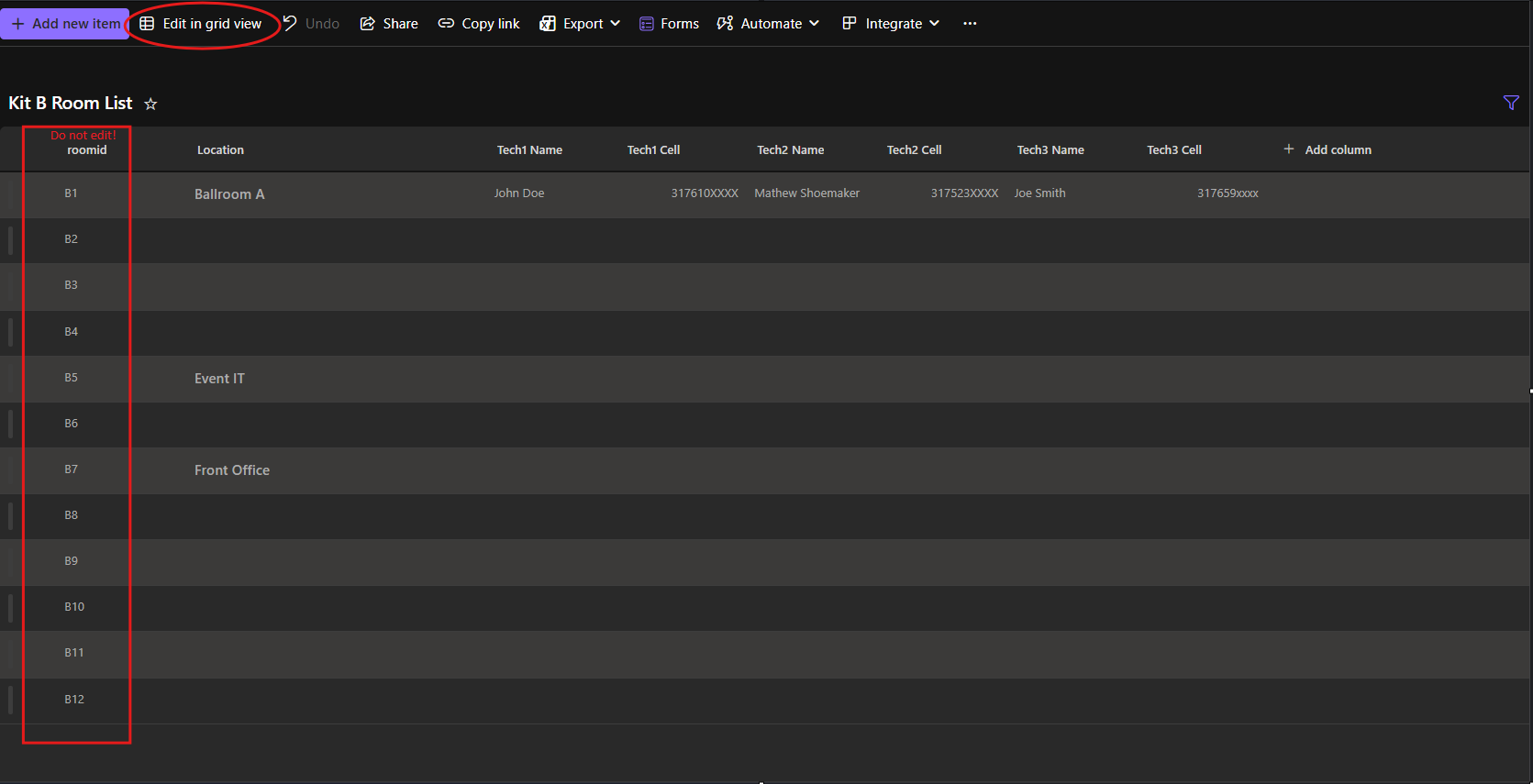
To make changes you can click the row or click "edit in grid view" at the top. Then choose a row with an ID that matches the ID on the back of the card. The only field that is required is the location name of where you are placing the card. The names and cell fields are completely option. Evenoptional if allyou want the system to send texts to techs andsupporting cellthose locations. All messages are still sent to the corresponding Teams channel if those fields are blankleft it will still send messages to the teams.
Do not edit anything in the first column!blank.
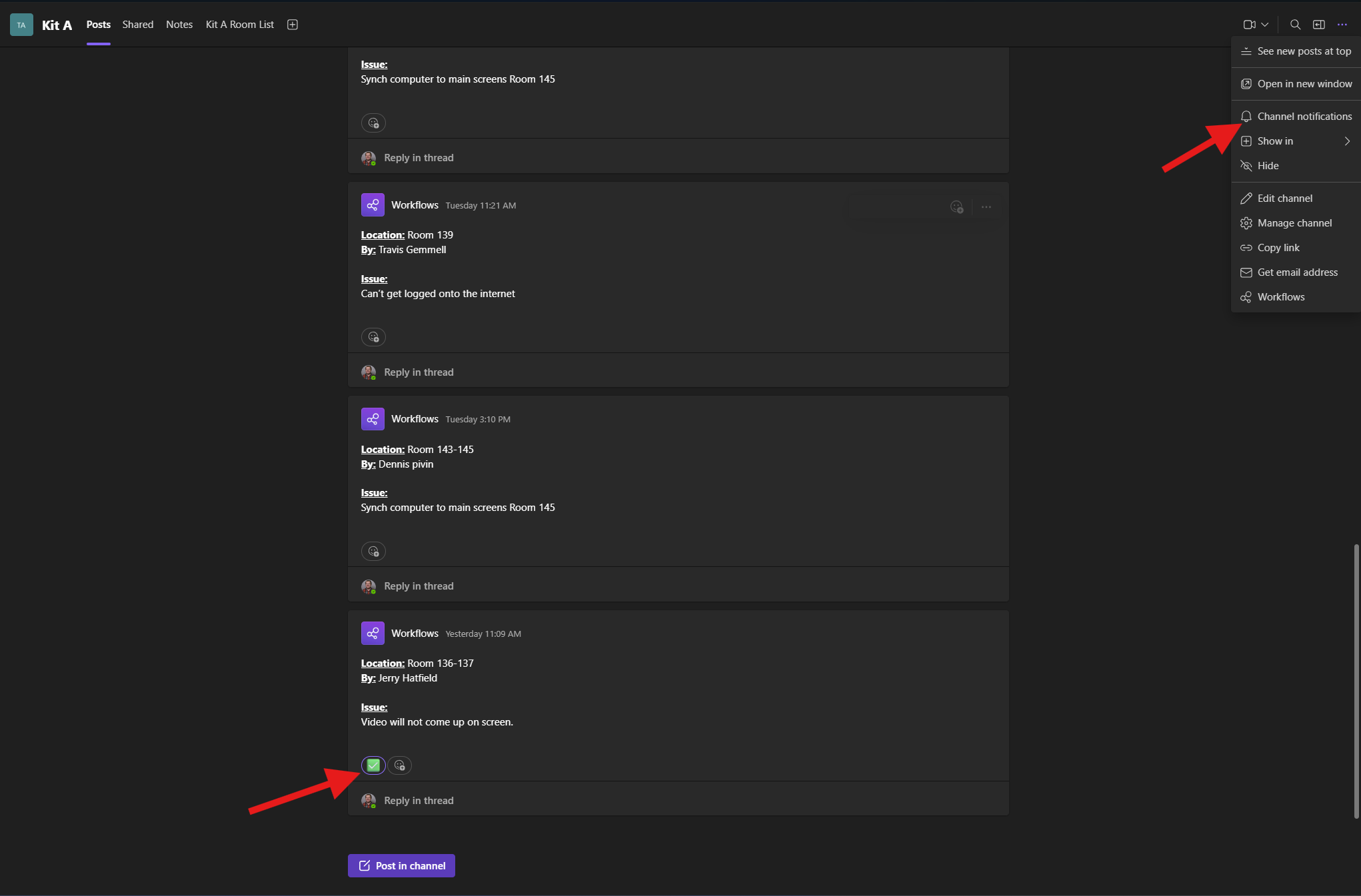
EveryHere supportis messagea will be sent to theteams channel for thatKit kitA aswith shownsome below.support requests. If you want to receive notifications for this channel then adjust those at the top right. If multiple people are using teams you can use notificationsreactions to see who is handling the request.
At the end of your show remember to remove tech names and numbers and adjust your notifications!
Send any questions to event_it@markeys.com