
PTZ Remote Camera Controller
https://pro-av.panasonic.net/en/products/aw-rp150gj/
Panasonic PTZ Camera Setup
AW-UE160 + AW-RP150 | LAN Control Configuration
Prepared: April 28, 2026
1. Signal Flow
The diagram below shows the physical LAN signal path from the camera controller to the robotic camera. Two PoE+ injectors supply power to the devices over the ethernet cable, with an unmanaged switch bridging the two cable runs.
|
AW-RP150 Camera Controller |
LAN port → PoE OUT |
PoE Injector (PoE+ 802.3at) |
Data IN → Switch |
Unmanaged Network Switch |
Switch → Data IN |
PoE Injector (PoE+ 802.3at) |
PoE OUT → LAN port |
AW-UE160 Robotic Camera |
Both PoE injectors must be PoE++ (802.3bt) rated - standard PoE is insufficient to power the AW-UE160.
Injectors need to be set to BT. Power cycle the device if the POE injector toggle has been changed.
2. IP Address Configuration
Both devices must reside on the same subnet with unique IP addresses. The confirmed working configuration is as follows:
|
Device |
IP Address |
Subnet Mask |
|
AW-UE160 Camera |
192.168.0.21 thru 29 |
255.255.255.0 |
|
AW-RP150 Controller |
192.168.0.10 thru 12 |
255.255.255.0 |
Note: Every camera and controller has been set with there own ip address. It is labeled on the device. Please don't change the ip address.
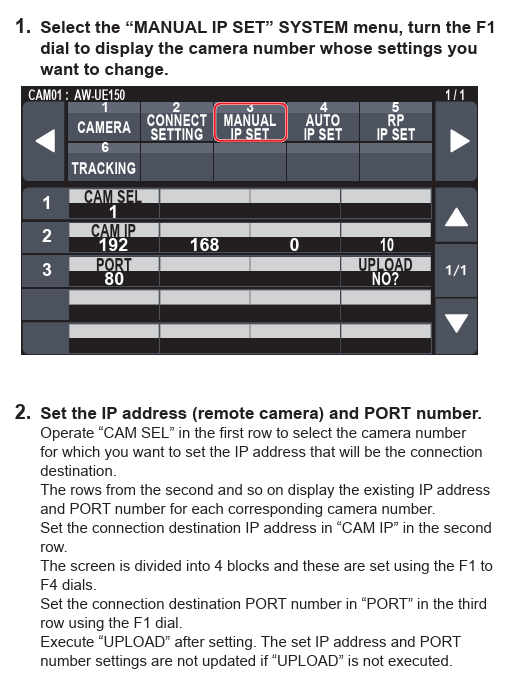
3. Camera to Controller Setup
4. Easy IP SETUP TOOL - Panasonic
1) If for any reason you need to go into the the Easy IP SETUP TOOL.exe for the unit the username and password are below:
Username: markeys | Password: 2909