
Operator View - Quick Start
After logging in using Operator credentials, you’ll see a spreadsheet-style interface listing all sessions and presentations for the entire event.
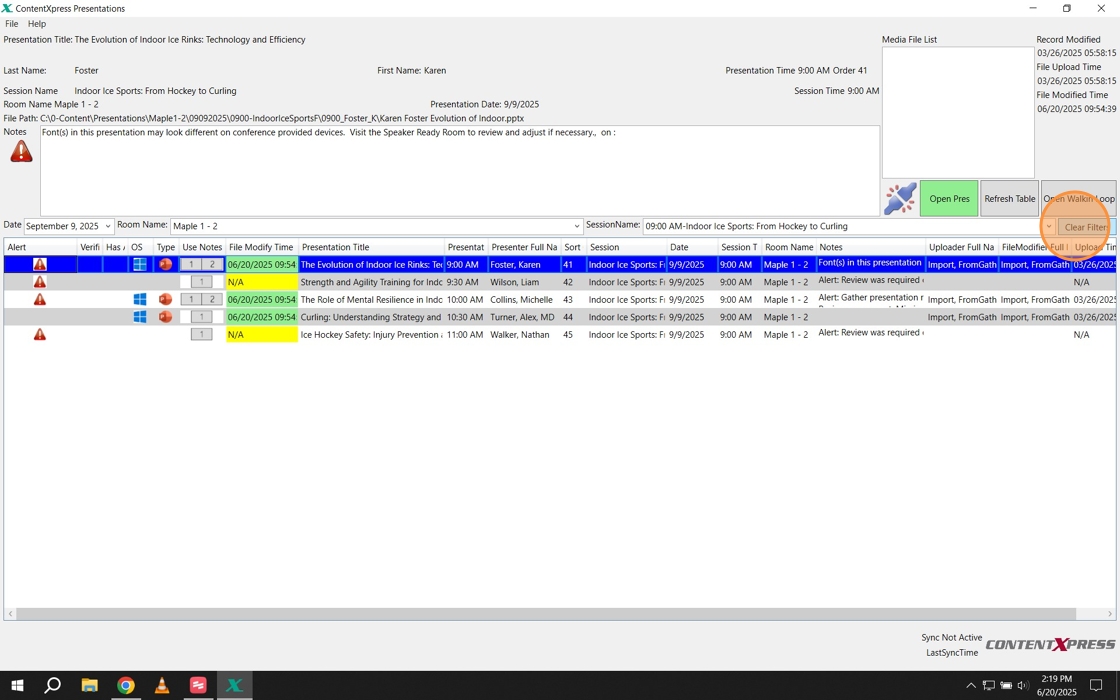
To make navigation easier, start by using the filters (see below, circled in red) to narrow the view to just the presentations relevant to you. You can filter by date, room name, and session name. Use the drop-down arrows next to each filter field to make your selections.
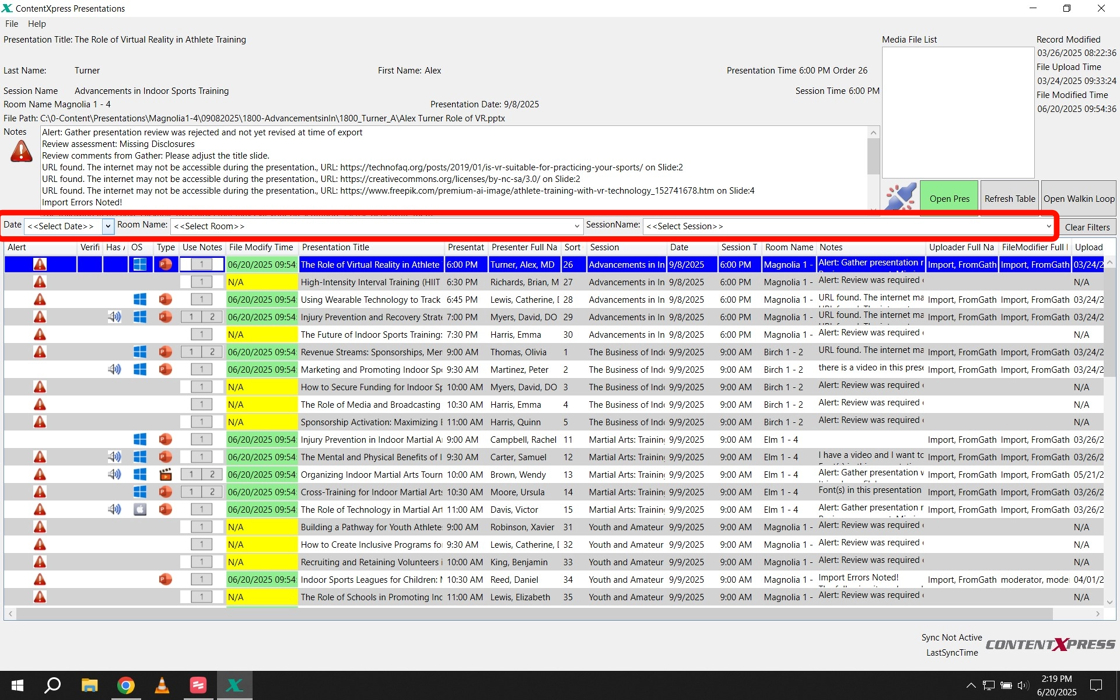
Once filtered, you can quickly identify which presentations have files uploaded:
-
A green highlight in the File Modify Time column indicates that the presentation has been uploaded.
-
A yellow highlight means no presentation has been uploaded yet.
- The columns can be dragged to a different position in the grid and resized as the operator prefers. these configurations will be saved to the machine thus will "stick" between logins and reboots.
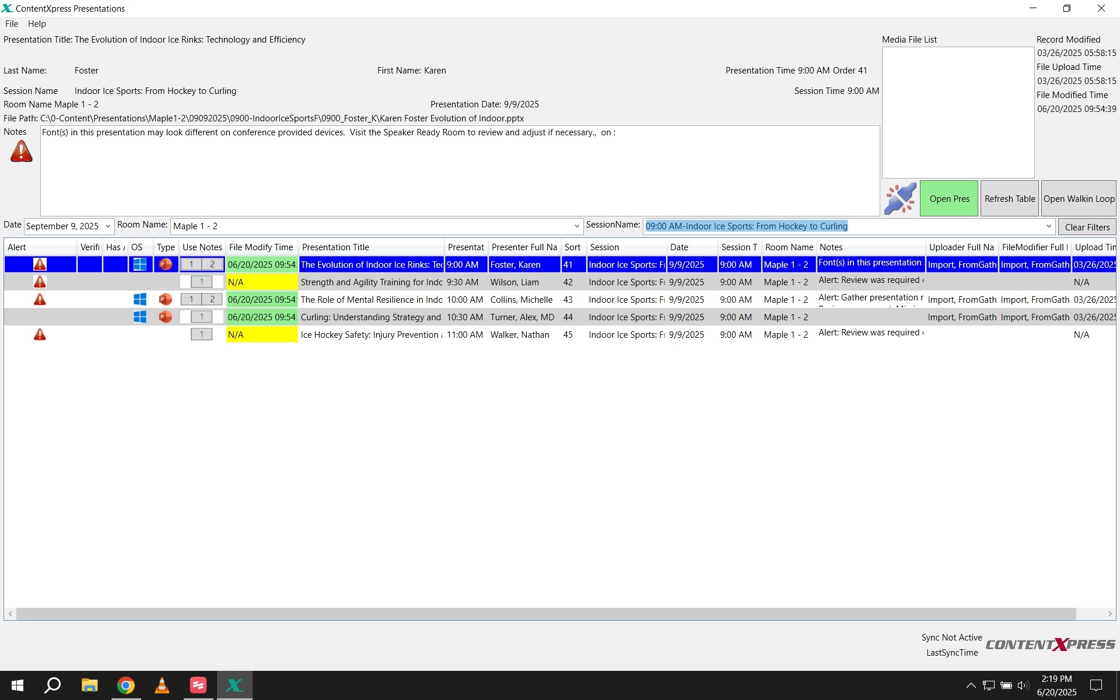
To open a presentation:
-
Click on the desired entry in the spreadsheet. The row will highlight in blue.
-
Then, click the green “Open Pres” button located just above the Session Name filter.
The presentations within a specific session should display in the proper presenter order. See either the "Presentation Time" or "Sort Order" column. Clicking on column headers will sort on that column.
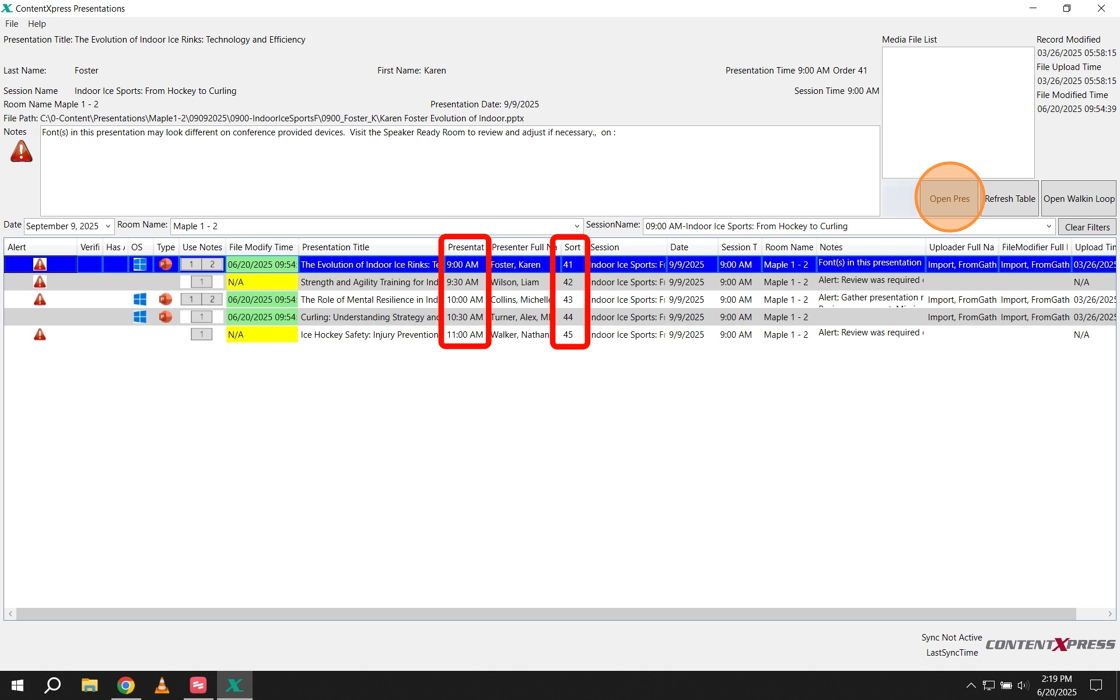
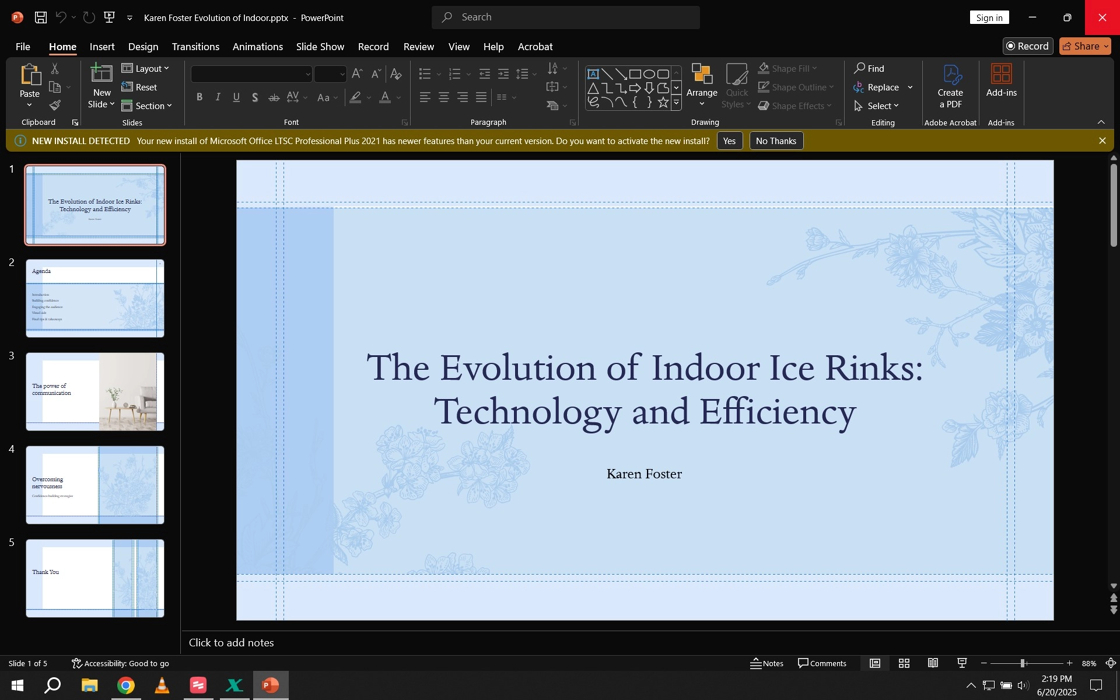
The presentation will open. If time allows, it’s always a good idea to review the slides in advance to ensure everything looks correct on the room display.
Once the presentation is complete, simply close the presentation software to return to ContentXpress.
Use the “Clear Filters” button to reset your view and bring back the full list of sessions and presentations for the conference.
last minute Loading or Editing a presentation through operator view.
If you have a speaker needing to load last minute you can load a session through moderator view. Do this by holding control and then double clocking either "Show Presentation" or "Presentation has not been loaded" depending on what is there. This will go through the upload wizard that will also send the file back to the ContentXpress server.
In operator (as opposed to superoperator), if a presenter needs to make a last minute edit to thier presentation holding down the alt key whil clicking on presentation open button will open the presentation in normal edit view. Thes change will be propogated to the server.